Zhongfarewell
\n```\n\nAt the same time, you need to create a canvas tag on your page to render the content:\n\n```js\n\n \n \n \n\n```\n\nThe `index.min.js` code internally retrieves the `canvas` tag via its id attribute and renders accordingly, so the id value of the canvas must match the id value of the selector in the code file (the selector’s id in the code is `container`). If your canvas uses a different id, you must modify it synchronously in the code file:\n\n```js\nfunction s() {\n W = document.querySelector('#container') // change to the actual id of the canvas\n var t = window.devicePixelRatio\n ;(W.width = window.innerWidth * t),\n (W.height = window.innerHeight * t),\n (W.style.width = window.innerWidth + 'px'),\n (W.style.height = window.innerHeight + 'px'),\n (G = new g['default'](W.width, W.height, t, N, I, {\n trailRate: 1,\n trailScaleRange: [0.2, 0.45],\n collisionRadius: 0.45,\n dropletsCleaningRadiusMultiplier: 0.28\n })),\n (z = (0, $['default'])(Y.width, Y.height)),\n (L = z.getContext('2d')),\n (B = (0, $['default'])(U.width, U.height)),\n (X = B.getContext('2d')),\n p(O, j),\n (q = new m['default'](W, G.canvas, z, B, null, {\n brightness: 1.04,\n alphaMultiply: 6,\n alphaSubtract: 3\n })),\n o()\n}\n```\n\nCode modification ends here.\n\n### Download Required Rendering Resources\n\nSimply modifying the code is not enough to render successfully, because the raindrop rendering uses resources such as background images. You need to download all files in the [img](https://github.com/codrops/RainEffect/tree/master/demo/img) folder and place them in your own project; these files will be automatically loaded during rendering.\n\n![image.png](https://www.zhongfw.online/align-minio/memoryimage/b3ee483c7db7051c81ee9f70a0674df3.png)If the image paths are correct and load normally, you should see the rendered page in your project, like this:\n\n![image.png](https://www.zhongfw.online/align-minio/memoryimage/3403a5e8939ed2d869f4ff170069e102.png)\\### Change Background Image\n\nPlace your own background image in the img folder and modify the file path in index.min.js to load your own background image:\n\n```js\n{ name: \"textureRainFg\", src: \"./weather/texture-rain-fg.png\" },//change src to your own background image path\n{ name: \"textureRainBg\", src: \"./weather/texture-rain-bg.png\" },//change src to your own background image path\n```\n\n## Using npm Package (Node Package)\n\nIt is not hard to notice that the above usage is rather cumbersome and cannot cooperate well with today’s front-end engineering workflows (such as webpack, vite). This refactoring work aims at engineering practices without modifying the core source code. The implemented features are as follows:\n\n- Provide TypeScript support, which will be carried out throughout the entire lifecycle of the refactoring.\n- Expose some commonly used configurations: such as background image, video background, raindrop parameters, etc.\n- And more...\n\n### Installation\n\n```bash\nnpm i aling-raining\n```\n\n**Hereinafter, the refactored library is referred to as [Arain](https://www.npmjs.com/package/aling-raining)**\n\n### Basic Usage\n\nThe default export of Arain is Rain. You can initialize a Rain instance through this class. The basic structure of the class is as follows:\n\n```typescript\nexport interface RainOptions { \n bg: string // background image\n onInit?: () => void // called when page initialization is complete, rendering is done at this point\n fg?: string // image reflected in raindrops, usually a compressed version of the background image; defaults to background image if not provided\n dropColor: string\n dropAlpha: string\n onAbort?: () => void // called when animation stops\n minR?: number // minimum droplet radius\n maxR?: number // maximum droplet radius\n maxDrops?: number // maximum number of droplets\n}\nexport default class Rain {\n private _id: string // canvas element id, e.g., #my-canvas\n private _options?: RainOptions // exposed configuration items\n constructor(id: string, options?: RainOptions) {\n this._id = id\n this._options = options\n }\n init() {\n // initialization operations\n }\n abort() {\n // termination operations\n }\n}\n```\n\nAn example of rendering with an image as background is as follows:\n\n```typescript\nimport { Rain } from 'aling-raining'\n\n// instantiate Rain\nconst rainInstance = new Rain('#aling-rain-cover',{\n bg: './weather/texture-rain-bg.png',\n fg: './weather/texture-rain-fg.png',\n dropColor: './drop-color.png',\n dropAlpha: './drop-alpha.png',\n onInit() {\n onLoad?.()\n }\n })\n\n// initialize rendering\nrainInstance.init()\n```\n\n`./drop-color.png` and `./drop-alpha.png` are required rendering resources; the canvas synthesizes raindrops using these two images. You can download them [here](https://github.com/codrops/RainEffect/tree/master/demo/img).\n\nIn the code, `#aling-rain-cover` is the id of the canvas element in your page; the animation will finally be rendered into your canvas, so your code also needs the corresponding `canvas` tag, like this:\n\n```html\n\n```\n\n:::error\n\nWe recommend `options.bg` to be a local resource, e.g., `./public/yourbackgroundimg.png`, otherwise you may receive the following error:\n\n`Failed to execute 'texImage2D' on 'WebGLRenderingContext': Tainted canvases may not be loaded. SecurityError: Failed to execute 'texImage2D' on 'WebGLRenderingContext': Tainted canvases may not be loaded.`\n\nThis is because your background image is a cross-origin resource. When drawing content using a cross-origin resource (such as an image) that does not have the proper CORS response header (Access-Control-Allow-Origin), the canvas will be marked as “tainted.” WebGL security restrictions prohibit tainted canvases from being used in operations like texImage2D.\n\n:::\n\n### Video Background\n\nStarting from version `v0.1.0`, video backgrounds are supported. Unlike image backgrounds, when initializing the instance, you no longer need to set the `bg/fg` properties; instead, specify the video element to render via the `video` property:\n\n```typescript\nnew Rain('#aling-rain-cover', {\n video: '#video-el',\n onAbort() {\n console.log('abort')\n },\n minR: 30,\n maxR: 60,\n dropAlpha: 'img/drop-alpha.png',\n dropColor: 'img/drop-color.png',\n onInit() {\n console.log('init')\n }\n })\n```\n\nHere, `video` is the id of your video element; the video content will be rendered onto the page. This means you need to manage the video element yourself, like this:\n\n```html\n\n\n\n\n```\n\nIf rendering is successful, the final effect will be as follows:\n\n![video.gif](https://www.zhongfw.online/align-minio/memoryimage//2ca123ddd2f0352ba71c41e83ae16c80.gif):::info\n\nWe recommend using bright videos as the rendering source, because raindrop rendering is based on real-time video content. If the video is not bright enough, you may render black raindrops. \\`(*>﹏<*)′\n\n:::\n\n### Instance Methods\n\n##### init\n\nInitializes the instance, reloads image resources (an asynchronous operation), and starts rendering. Repeating calls will start multiple rendering processes; redundant rendering processes are not automatically closed, which may cause your page to lag. Therefore, terminate the previous rendering before starting.\n\n```typescript\nrainInstance.init()\n```\n\n##### abort\n\nTerminates a rendering process, clears all animation rendering and variables to release memory, e.g., call it when routing changes.\n\n```typescript\nrainInstance.abort()\n```\n\n#### Instantiation Configuration\n\n##### bg\n\nBackground image of the raindrop canvas.\n\n##### minR\n\nMinimum radius of raindrops, default 10\n\n##### maxR\n\nMaximum radius of raindrops, default 40\n\n```typescript\nmaxR: 150\n```\n\n![image.png](https://www.zhongfw.online/align-minio/memoryimage/76ada44b9ca78c91ebd812ad027cae81.png)\\##### maxDrops\n\nNumber of large raindrops, default 900\n\n```typescript\nmaxDrops: 1\n```\n\n![image.png](https://www.zhongfw.online/align-minio/memoryimage/6cd183e367ed758b9083227a7967c96d.png)At this point there is only one raindrop on the page.","mainEntityOfPage":{"@type":"WebPage","@id":"https://www.zhongfw.online/awsome/posts/c9b37a098263cea38606f03c82d4db4b"},"datePublished":"2025-06-25T02:03:37.569Z","author":{"@type":"Person","name":"Aling"}}

Componentization Practice of the 【Rain Effect】 Feature

【Rain Effect】 is a visually stunning rain animation JavaScript library, and its classic implementation has been showcased on the homepage of this site. However, the library is relatively old, lacks configuration capabilities, and is difficult to maintain. This article documents our complete practical process of refactoring its logic, decoupling dependencies, and encapsulating it as a React component.

🎵

飞鸟和蝉-任然

this is my favourite song, hope you like it

If you have already visited the homepage of this site Homepage, you might be amazed by the realistic raindrop effect on the landing page. This effect comes from an open-source project RainEffect (hereinafter referred to as RE). The project implements these magical raindrop effects using webgl and has been open-sourced on GitHub.

However, due to the long-term lack of maintenance of this project, even for front-end developers, it is difficult to elegantly integrate into modern projects. This article will detail how to introduce and render this effect in actual projects, and gradually refactor it into maintainable code that supports TypeScript. The whole process does not involve complex logic—let’s get started.

#Quick Integration via Existing Solutions

If you do not want to install the refactored npm package, you can also choose to directly include the original JS source code and quickly render the raindrop effect in HTML. This was the implementation method used by this site before completing the refactoring, suitable for temporary integration or lightweight usage.

#Download Project Code

Download this file (RE) and place it in your directory; we will later introduce this file via a script tag.

#Using Other Versions (Unverified)

I have only used the index.min.js image background so far, so it is unknown whether the other versions work properly. If you wish to use another version (for example, video background), you can download index3.min.js.

Click here to view the rendering effects of each version.

#Modify the Downloaded Code

Introduce the downloaded file into your project via a script tag, for example:

js
<script src="./index.min.js"></script>

At the same time, you need to create a canvas tag on your page to render the content:

js
<body> <!-- Other elements --> <canvas id="container"></canvas> <script src="./index.min.js"></script> </body>

The index.min.js code internally retrieves the canvas tag via its id attribute and renders accordingly, so the id value of the canvas must match the id value of the selector in the code file (the selector’s id in the code is container). If your canvas uses a different id, you must modify it synchronously in the code file:

js
function s() { W = document.querySelector('#container') // change to the actual id of the canvas var t = window.devicePixelRatio ;(W.width = window.innerWidth * t), (W.height = window.innerHeight * t), (W.style.width = window.innerWidth + 'px'), (W.style.height = window.innerHeight + 'px'), (G = new g['default'](W.width, W.height, t, N, I, { trailRate: 1, trailScaleRange: [0.2, 0.45], collisionRadius: 0.45, dropletsCleaningRadiusMultiplier: 0.28 })), (z = (0, $['default'])(Y.width, Y.height)), (L = z.getContext('2d')), (B = (0, $['default'])(U.width, U.height)), (X = B.getContext('2d')), p(O, j), (q = new m['default'](W, G.canvas, z, B, null, { brightness: 1.04, alphaMultiply: 6, alphaSubtract: 3 })), o() }

Code modification ends here.

#Download Required Rendering Resources

Simply modifying the code is not enough to render successfully, because the raindrop rendering uses resources such as background images. You need to download all files in the img folder and place them in your own project; these files will be automatically loaded during rendering.
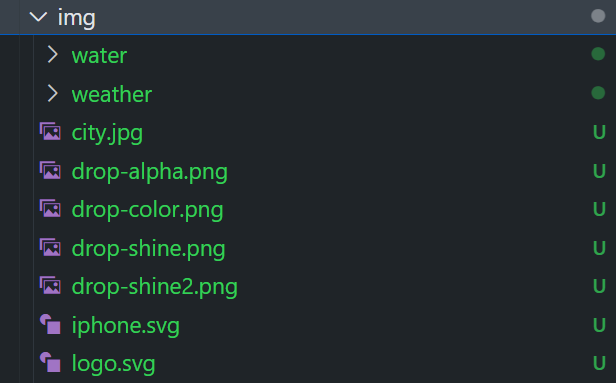
image.pngIf the image paths are correct and load normally, you should see the rendered page in your project, like this:

image.png### Change Background Image

Place your own background image in the img folder and modify the file path in index.min.js to load your own background image:

js
{ name: "textureRainFg", src: "./weather/texture-rain-fg.png" },//change src to your own background image path { name: "textureRainBg", src: "./weather/texture-rain-bg.png" },//change src to your own background image path

#Using npm Package (Node Package)

It is not hard to notice that the above usage is rather cumbersome and cannot cooperate well with today’s front-end engineering workflows (such as webpack, vite). This refactoring work aims at engineering practices without modifying the core source code. The implemented features are as follows:

  • Provide TypeScript support, which will be carried out throughout the entire lifecycle of the refactoring.
  • Expose some commonly used configurations: such as background image, video background, raindrop parameters, etc.
  • And more...

#Installation

bash
npm i aling-raining

Hereinafter, the refactored library is referred to as Arain

#Basic Usage

The default export of Arain is Rain. You can initialize a Rain instance through this class. The basic structure of the class is as follows:

typescript
export interface RainOptions { bg: string // background image onInit?: () => void // called when page initialization is complete, rendering is done at this point fg?: string // image reflected in raindrops, usually a compressed version of the background image; defaults to background image if not provided dropColor: string dropAlpha: string onAbort?: () => void // called when animation stops minR?: number // minimum droplet radius maxR?: number // maximum droplet radius maxDrops?: number // maximum number of droplets } export default class Rain { private _id: string // canvas element id, e.g., #my-canvas private _options?: RainOptions // exposed configuration items constructor(id: string, options?: RainOptions) { this._id = id this._options = options } init() { // initialization operations } abort() { // termination operations } }

An example of rendering with an image as background is as follows:

typescript
import { Rain } from 'aling-raining' // instantiate Rain const rainInstance = new Rain('#aling-rain-cover',{ bg: './weather/texture-rain-bg.png', fg: './weather/texture-rain-fg.png', dropColor: './drop-color.png', dropAlpha: './drop-alpha.png', onInit() { onLoad?.() } }) // initialize rendering rainInstance.init()

./drop-color.png and ./drop-alpha.png are required rendering resources; the canvas synthesizes raindrops using these two images. You can download them here.

In the code, #aling-rain-cover is the id of the canvas element in your page; the animation will finally be rendered into your canvas, so your code also needs the corresponding canvas tag, like this:

html
<canvas id='aling-rain-cover'></canvas>

#Video Background

Starting from version v0.1.0, video backgrounds are supported. Unlike image backgrounds, when initializing the instance, you no longer need to set the bg/fg properties; instead, specify the video element to render via the video property:

typescript
new Rain('#aling-rain-cover', { video: '#video-el', onAbort() { console.log('abort') }, minR: 30, maxR: 60, dropAlpha: 'img/drop-alpha.png', dropColor: 'img/drop-color.png', onInit() { console.log('init') } })

Here, video is the id of your video element; the video content will be rendered onto the page. This means you need to manage the video element yourself, like this:

html
<canvas style="width: 100%; height: 100%;" id="aling-rain-cover"> </canvas> <video style="position: absolute; top: 0;" autoplay loop muted width="1" height="1" id="video-el" src="test.mp4"> </video>

If rendering is successful, the final effect will be as follows:

video.gif:::info

We recommend using bright videos as the rendering source, because raindrop rendering is based on real-time video content. If the video is not bright enough, you may render black raindrops. `(>﹏<)′

:::

#Instance Methods

#init

Initializes the instance, reloads image resources (an asynchronous operation), and starts rendering. Repeating calls will start multiple rendering processes; redundant rendering processes are not automatically closed, which may cause your page to lag. Therefore, terminate the previous rendering before starting.

typescript
rainInstance.init()
#abort

Terminates a rendering process, clears all animation rendering and variables to release memory, e.g., call it when routing changes.

typescript
rainInstance.abort()

#Instantiation Configuration

#bg

Background image of the raindrop canvas.

#minR

Minimum radius of raindrops, default 10

#maxR

Maximum radius of raindrops, default 40

typescript
maxR: 150

image.png##### maxDrops

Number of large raindrops, default 900

typescript
maxDrops: 1

image.pngAt this point there is only one raindrop on the page.