**Multi-image Alert**: Vercel Deployment and Domestic Access
Dude, want to give your website a nice domain name?
 Aling
AlingWhy did I think of writing about this? Today, while browsing the Chinese official website of Next.js, I saw a sentence on the Deployment page.
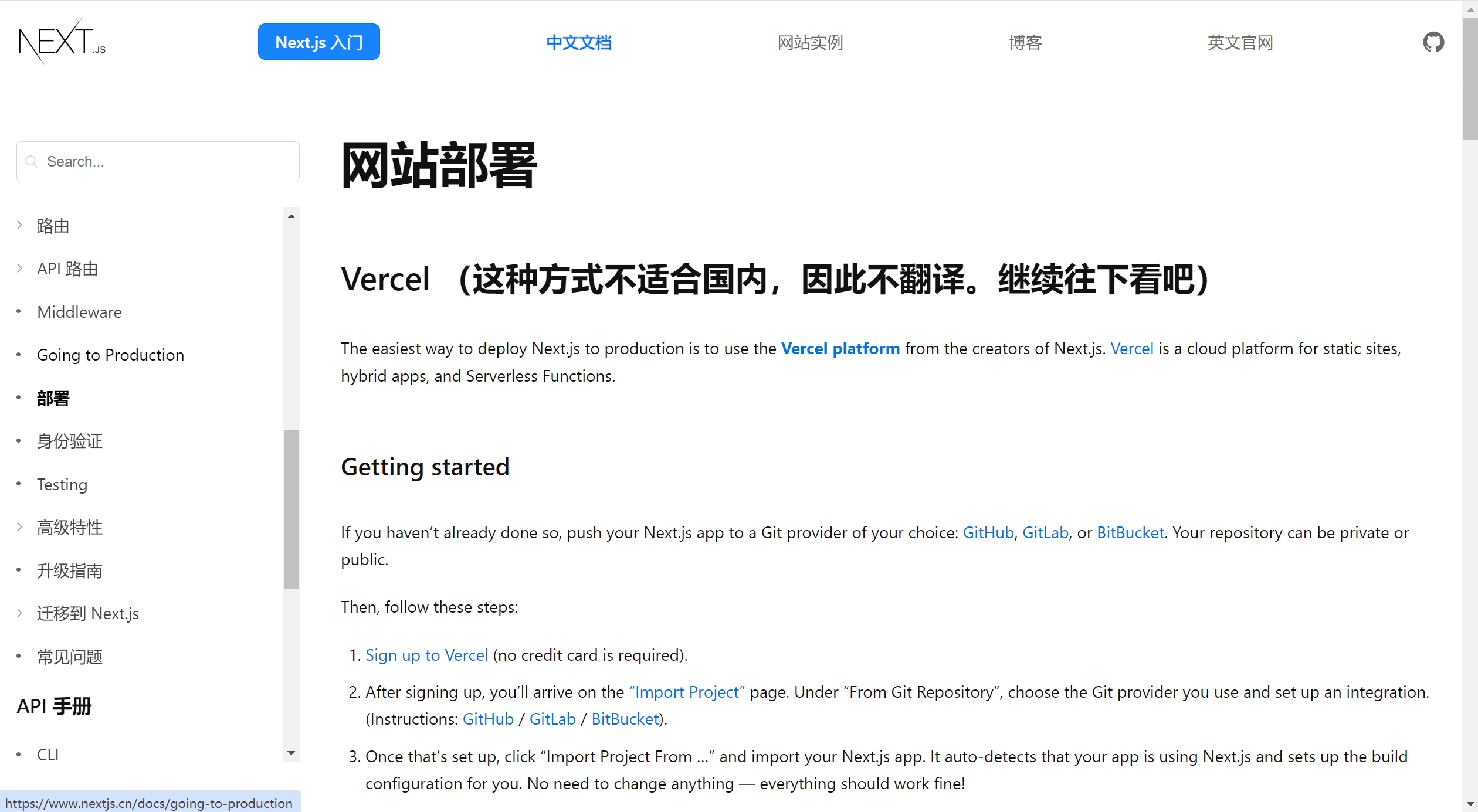 Not suitable for China haha, it reminded me of the fear of being dominated by scientific internet access. However, through research, I found that this issue can be solved via Cloudflare, so let’s talk about that in this article.
#Deploying a Website to Vercel
Currently, there are quite detailed tutorials online for deploying static pages on Vercel (of course, I will also show the deployment method with screenshots below). Most of them deploy by directly importing a GitHub project on the web interface, which is also the method officially recommended by Vercel. The biggest advantage is that when the corresponding GitHub project has a commit, Vercel can detect it and automatically rebuild the project to update the website.
#Importing a Project
Vercel provides two ways to import projects. The first is the one mentioned above — directly importing on the web interface, which is friendly for people without coding experience; the second is deploying via local command line. Below we’ll demonstrate both deployment methods.
#Import from GitHub via Web Interface
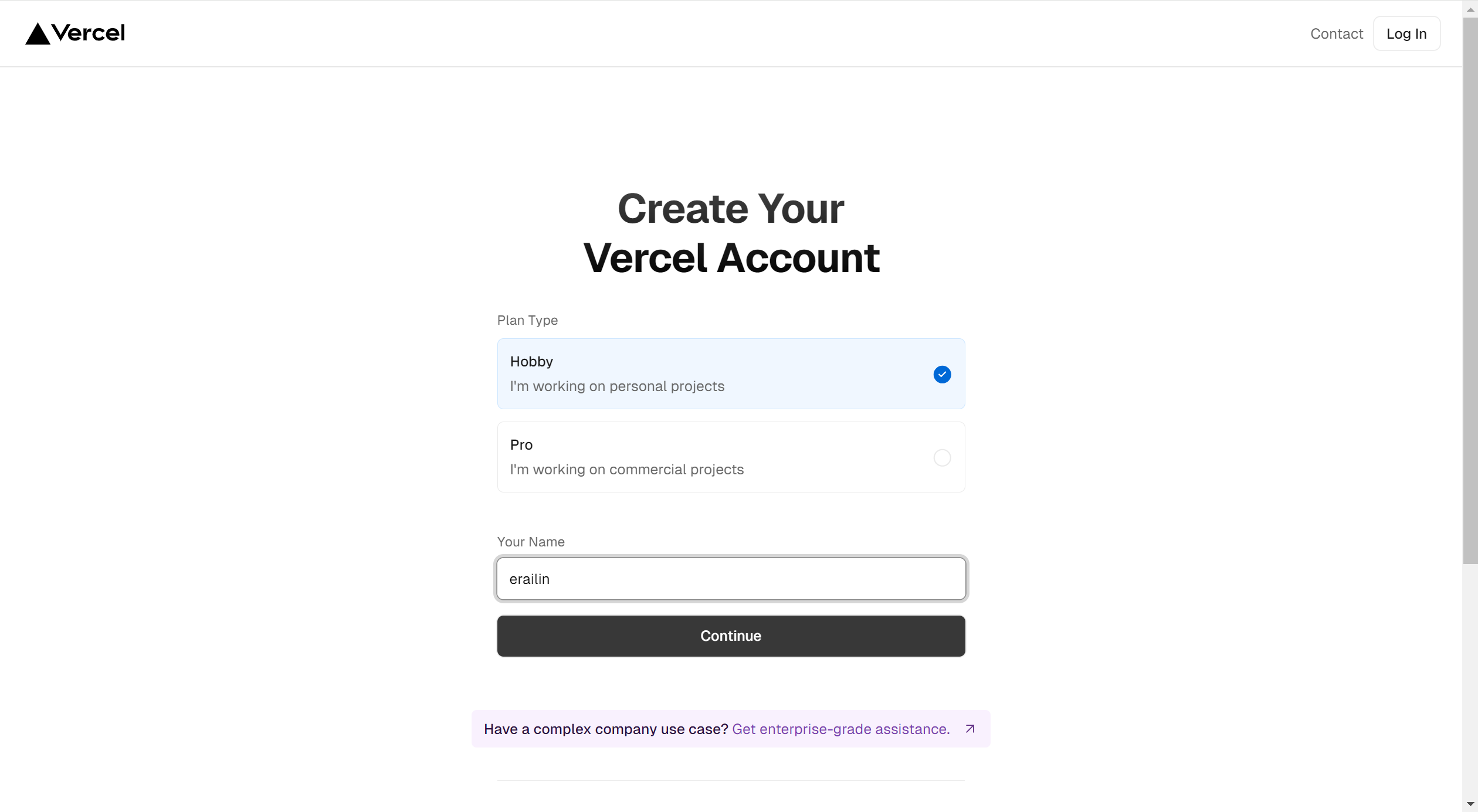
First, go to the official website and register a Vercel account with your email; we can choose “Personal” as the type:
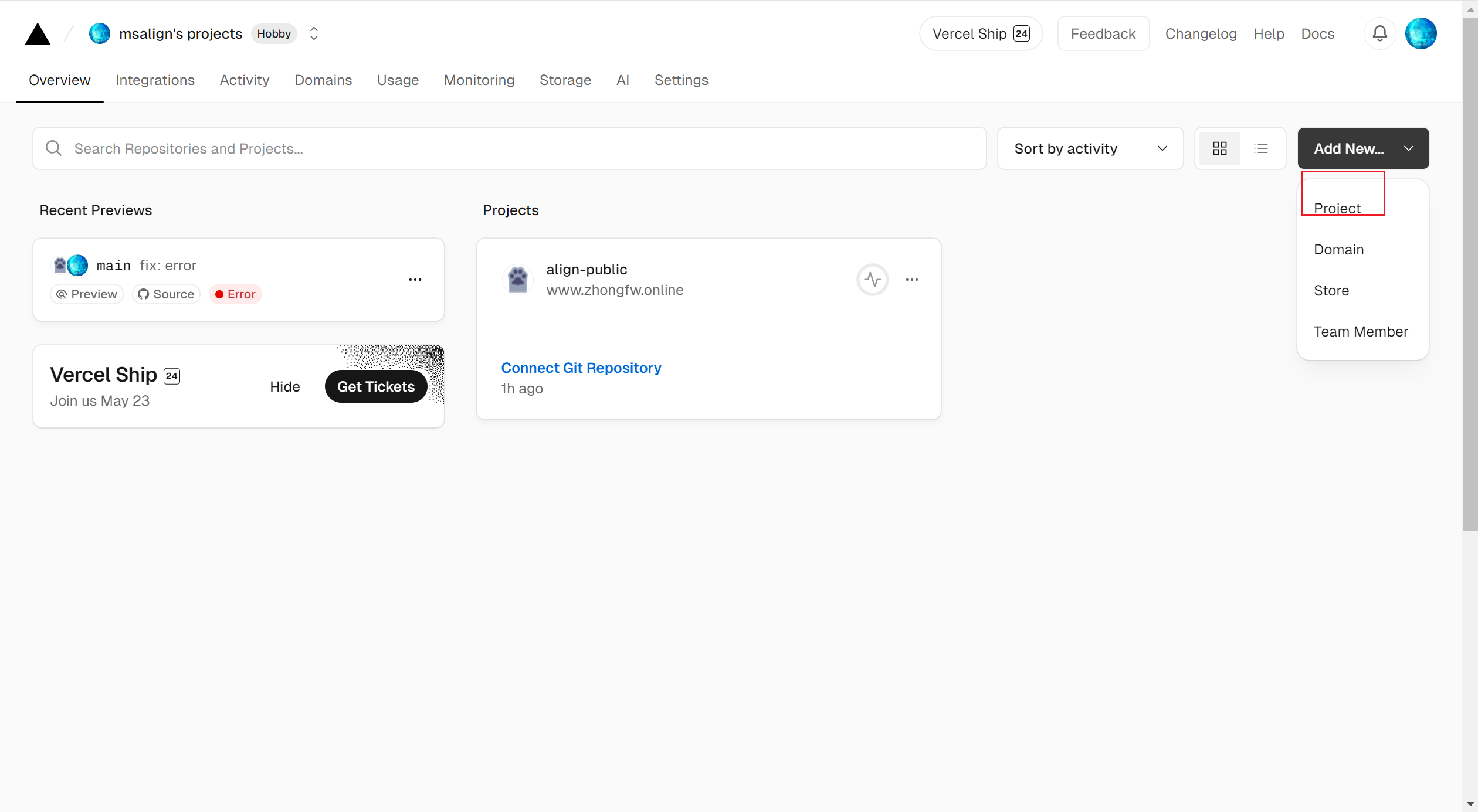
 In the dashboard, create a new project directly:
 Log in to your GitHub account and select the project you want to import:
 Next, configure the project build settings:
 The most important parts are the build and output configurations. If your project already uses a framework (e.g., VuePress), the build and output can use the default configuration without needing further modification. This is why the image above first asks you to select the Framework Preset. Therefore, for people without coding experience, it’s recommended to use a framework to build their project; frontend developers who have the ability to customize should confirm and modify relevant paths according to their own project.
Finally, click Deploy to build the project. Vercel will automatically install dependencies, package, and finally read the packaged files. If everything goes smoothly, after a successful build, you will have successfully deployed your website.
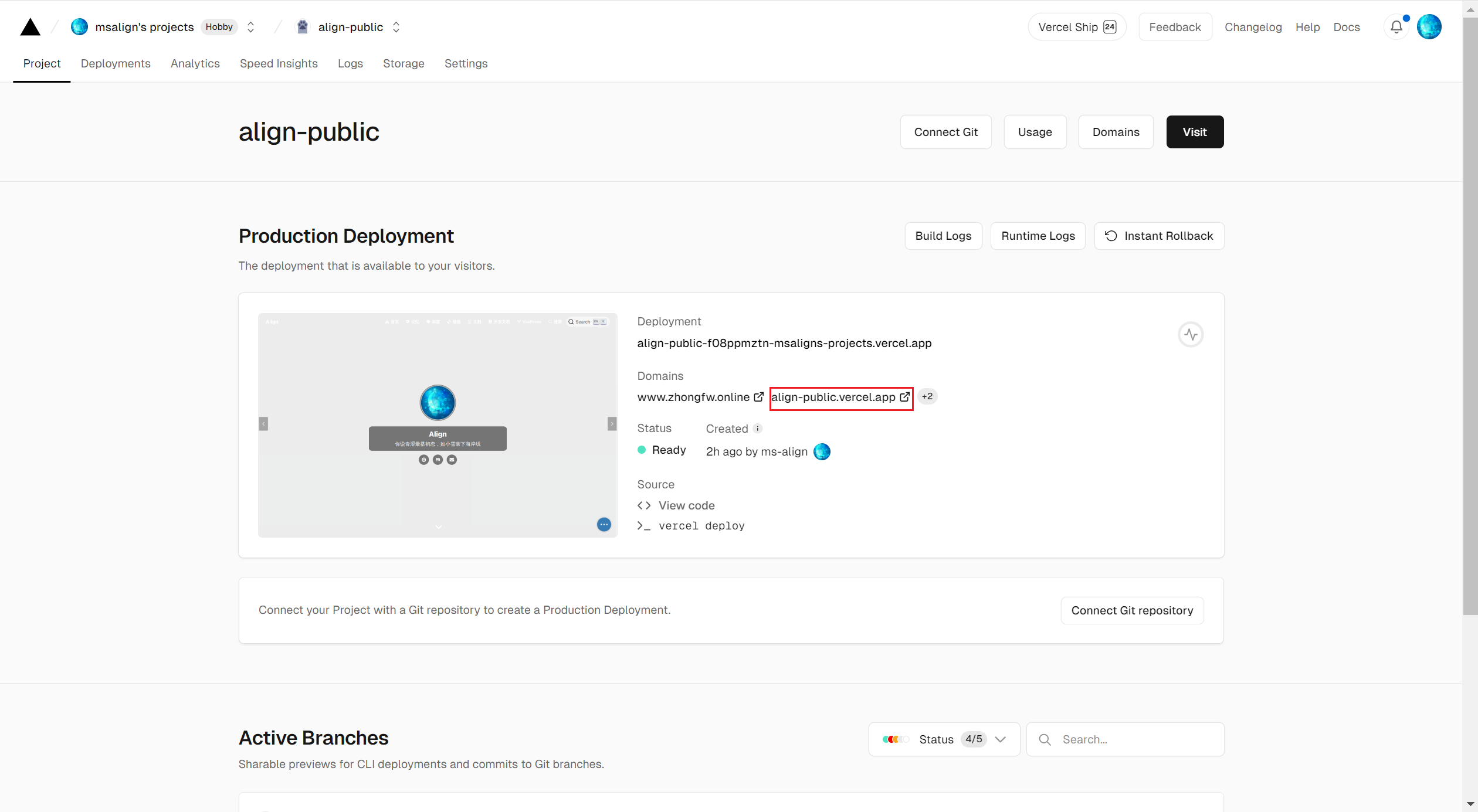 If you, like in the image above, get a firework (the deployment success effect), congratulations — your project has been deployed successfully. At this point, returning to the dashboard will show the successfully built website and the domain name generated by Vercel. Moreover, when you push new git commits to GitHub, Vercel will also automatically trigger the build process to update your website. The only imperfection is that accessing your website still requires a proxy; the domain name generated by Vercel is not accessible within mainland China, which is why the article starts by mentioning that Vercel deployment isn’t suitable for China.
#Local Build and Packaging
Besides importing projects via GitHub on the website, Vercel also provides a CLI that allows you to build and package locally directly to Vercel. Please note that this requires a Node.js environment.
We install Vercel directly:
npm i -g vercel
After successful installation, switch the terminal to the project root directory and log in to Vercel:
vercel login
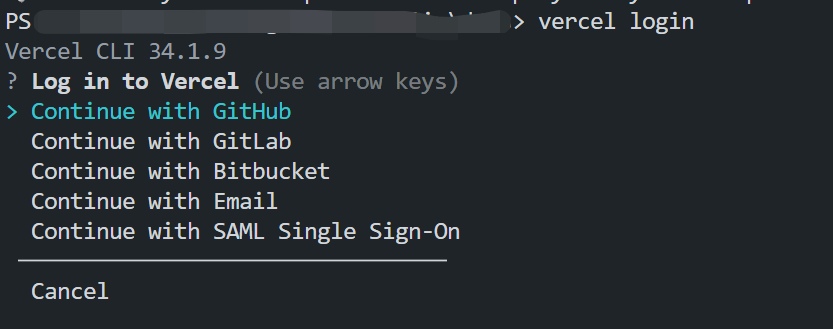 Once logged in, we can package our project by running
 vercel:
 Here you can choose whether to link to an existing project. If you want to overwrite an existing project, select yes; otherwise, select no to create a new project.
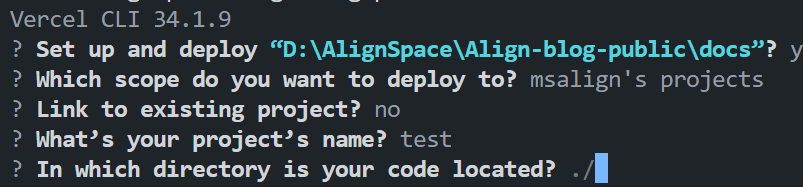 Similar to configuring on the web, set the root directory for building the project.
Then Vercel will generate a .vercel file in the directory and ask if you need to modify related packaging and installation commands. These configurations correspond to the items configured on the web:
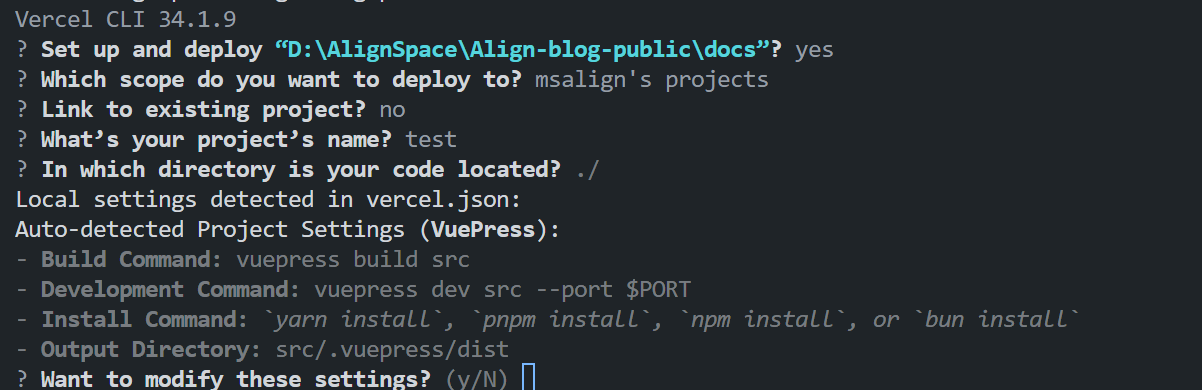 Next, Vercel will automatically build and upload the build resources to the corresponding project, and you can see the generated project on the website.
Compared with the previous method, this build approach loses the advantage of automatic builds. As for the benefit, I suppose it avoids situations where the local build succeeds but the Deploy build fails on the website, leaving you helpless (guilty as charged) 😕.
#Using Cloudflare Proxy for Access
As mentioned earlier, websites built on Vercel cannot be accessed normally in China, and the generated domain names have a .vercel suffix, which is not ideal. Let’s solve these two problems below.
#Purchasing a Domain Name
You can buy domain names from Tencent Cloud, Alibaba Cloud, Huawei Cloud, etc. Here we take Tencent Cloud as an example:
#Register a Tencent Cloud Account
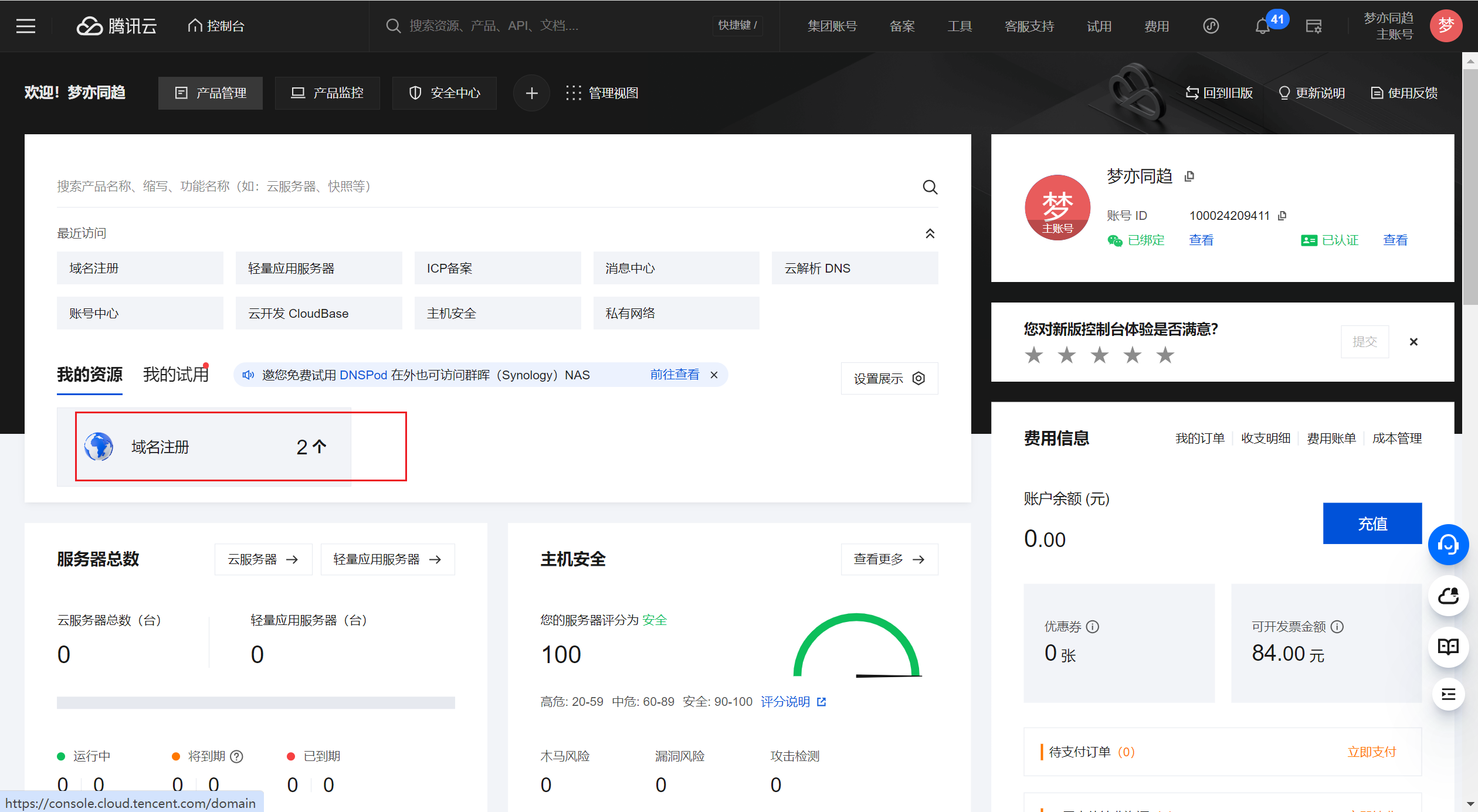
Click on domain registration:
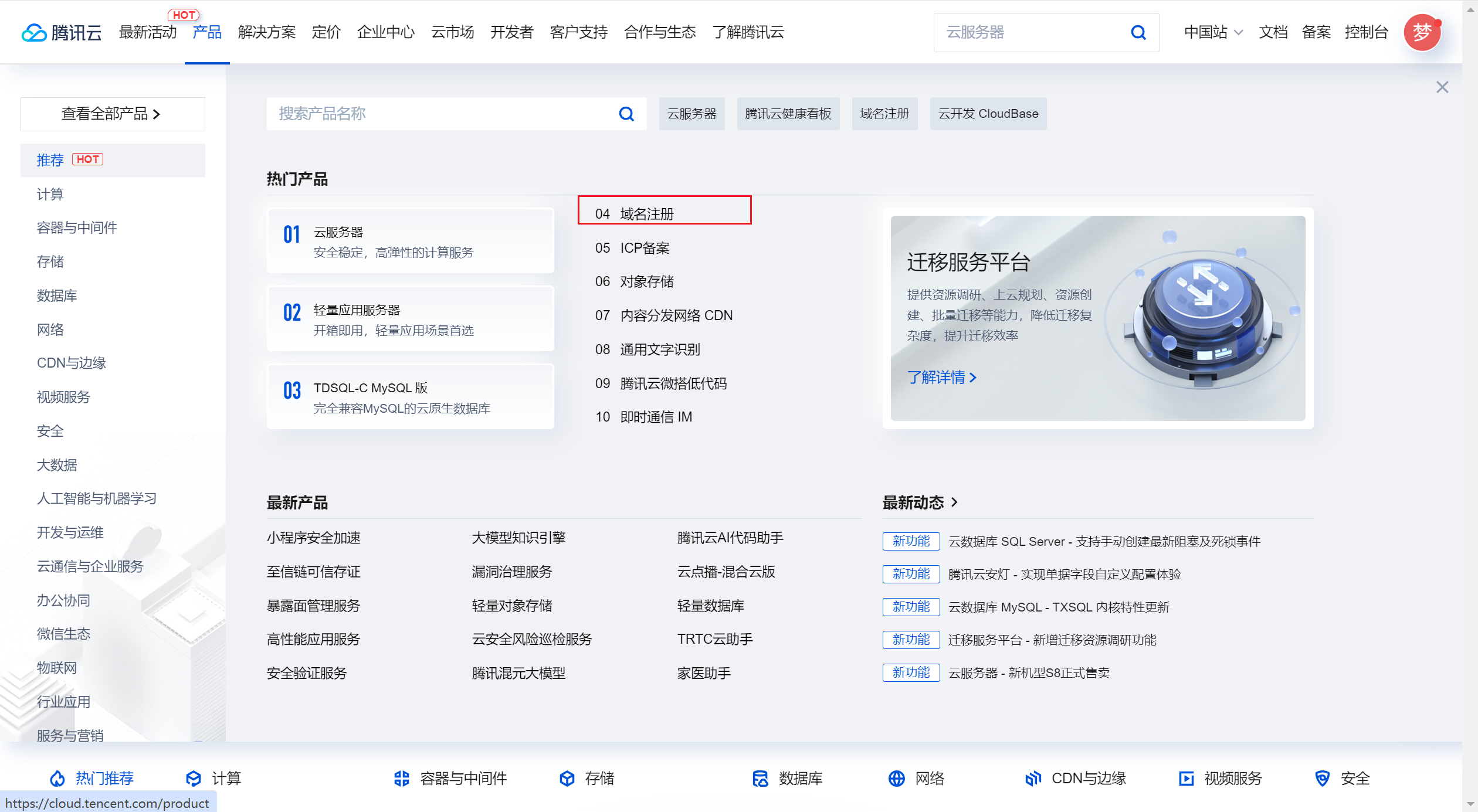 Choose one you like and purchase it:
 #### Modify DNS Servers
It’s necessary to explain why we modify DNS servers. Our way to bypass the firewall is that when we access our purchased domain via a browser, it redirects to our actual website address. Domestic cloud service providers don’t offer such services, so we need Cloudflare to handle the redirection. To enable Cloudflare to redirect, we must change the domain’s DNS servers to Cloudflare’s DNS server addresses.
Go to the console and manage the domain:

 Change the DNS servers to the following:
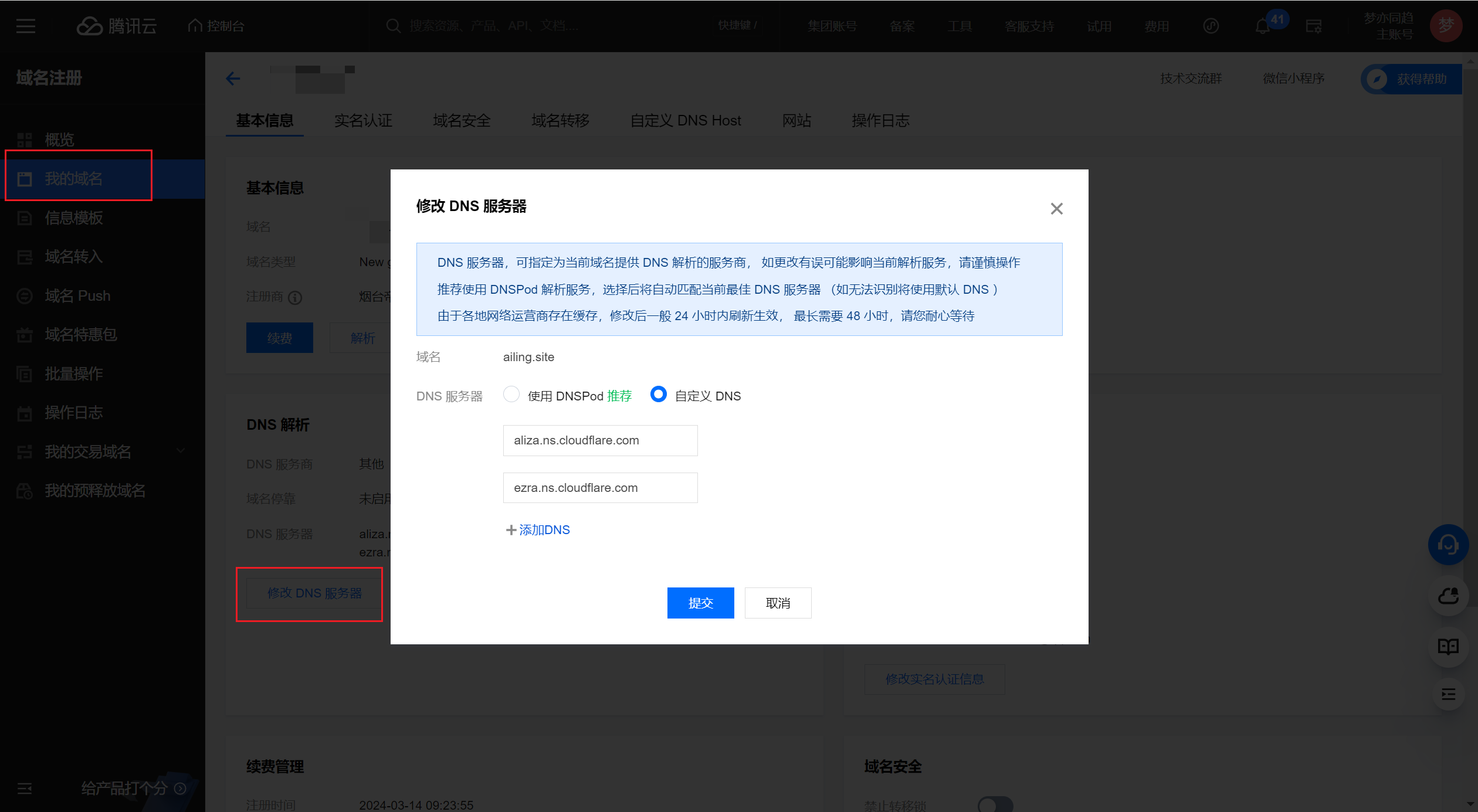
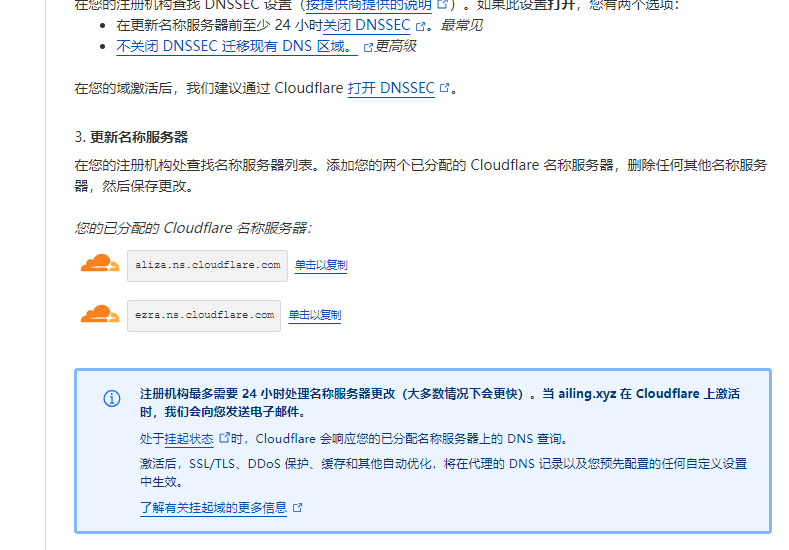
aliza.ns.cloudflare.com
ezra.ns.cloudflare.com
Alright! Now just wait for the changes to take effect. Although it says up to 48 hours, mine seemed to work pretty quickly.
That concludes our domain operations.
#Configuring Cloudflare Redirection
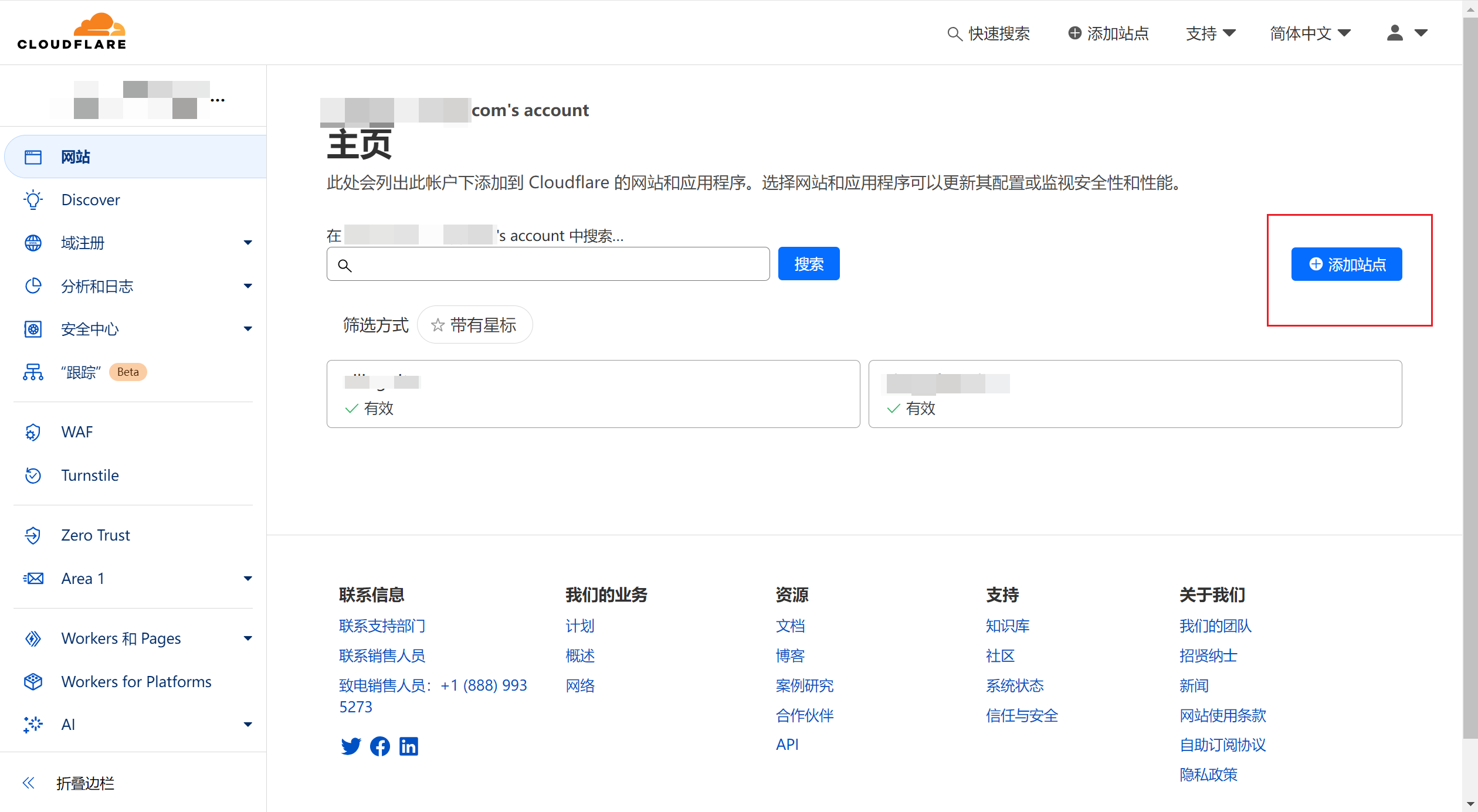
Go to Cloudflare and register an account, then add a site:
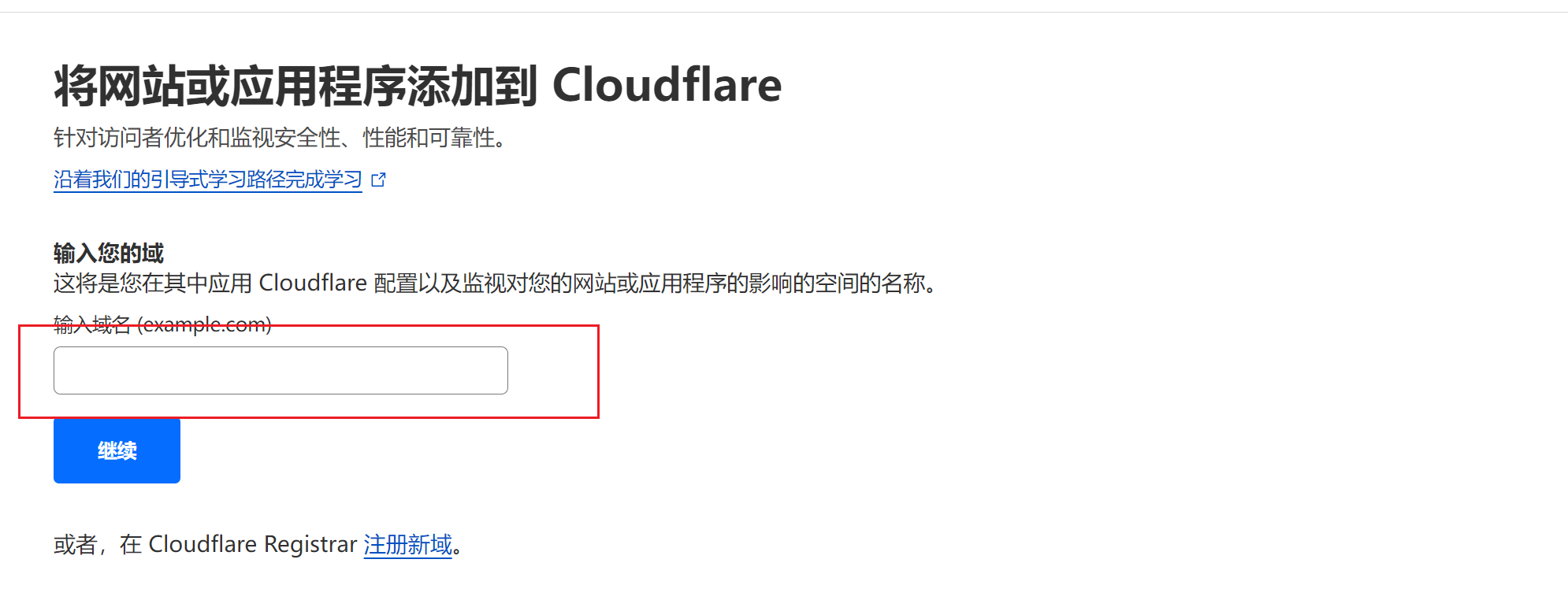
 Enter the domain you purchased and use the free plan:
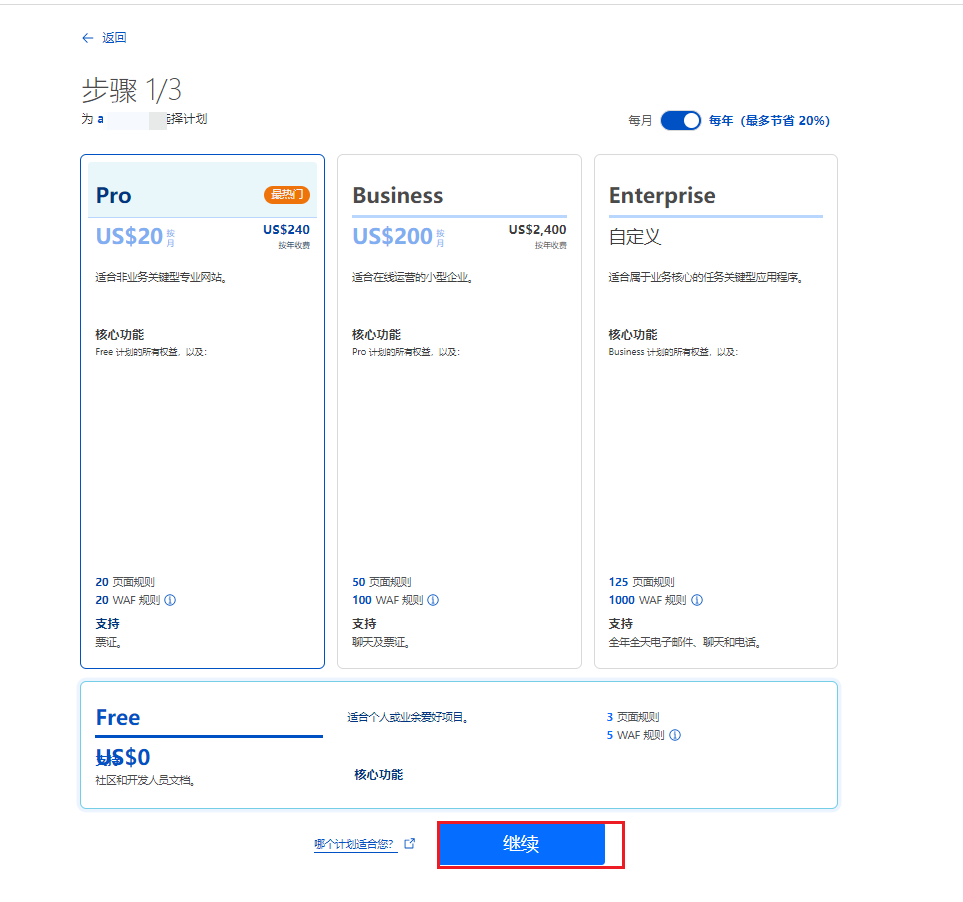 Continue all the way; here you can see the DNS server addresses we just used:
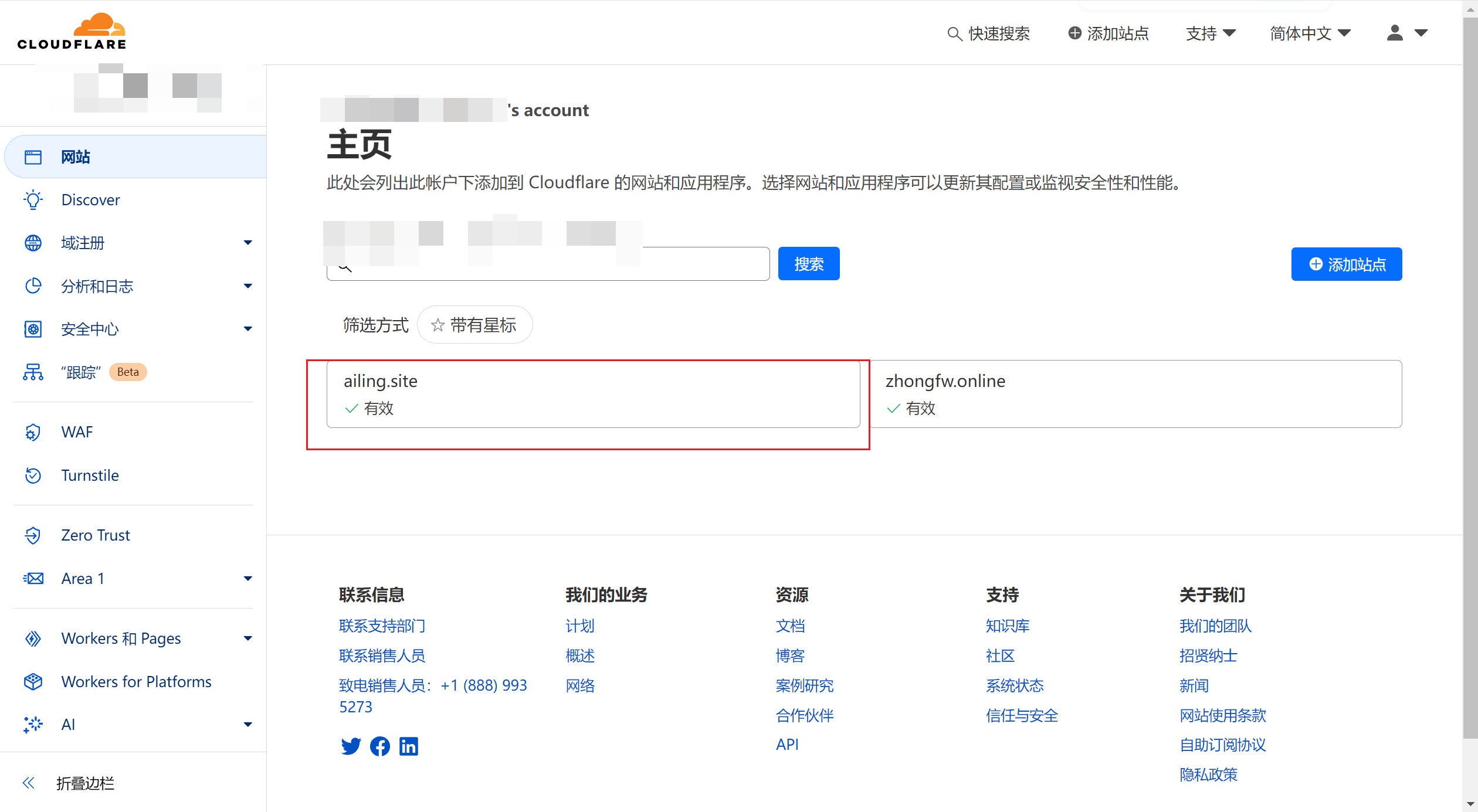
 After completion, click into our domain and configure DNS resolution rules:
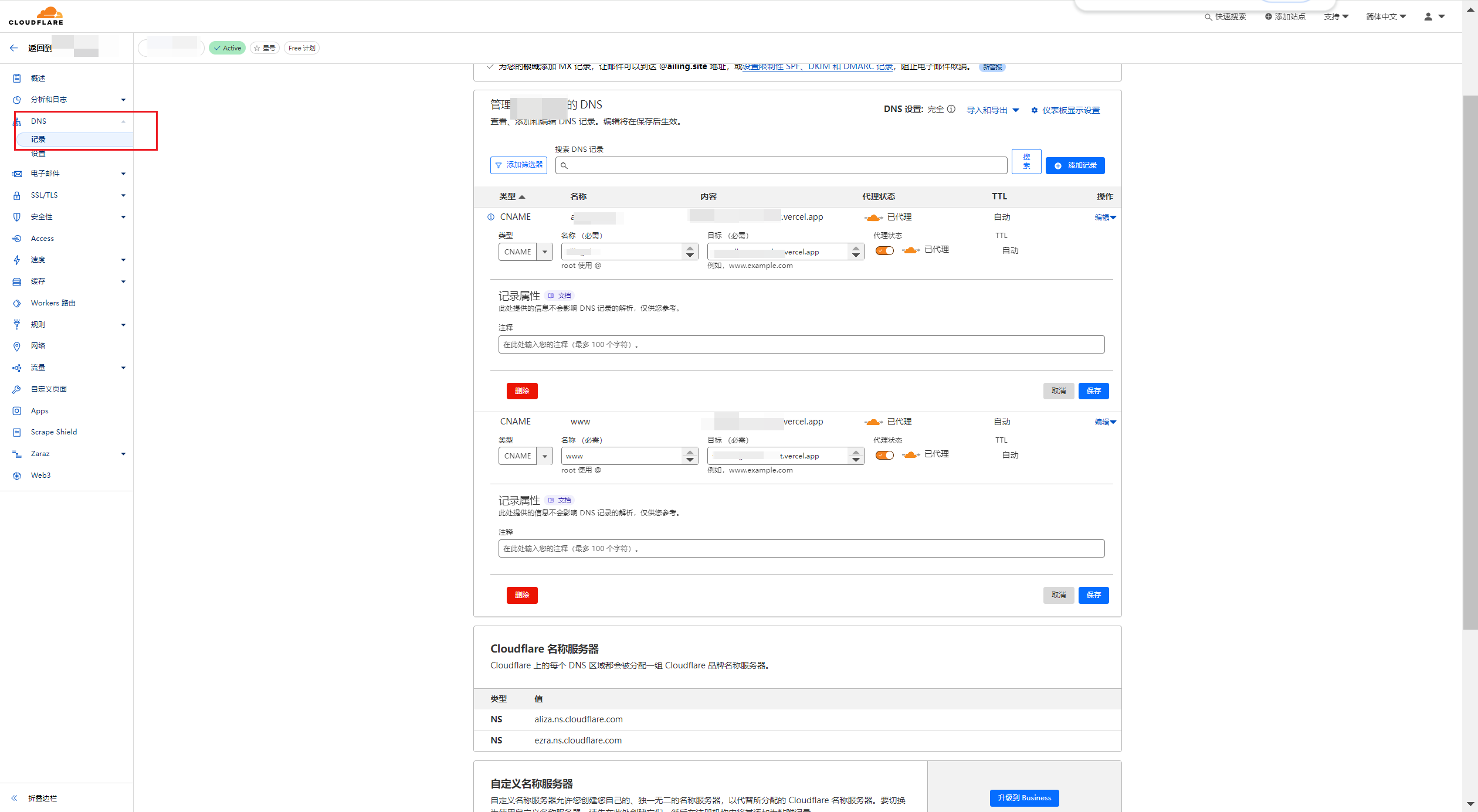
 Since we are proxying and redirecting the domain, the type is CNAME, then fill in your purchased domain and the domain given by Vercel.
Like this:
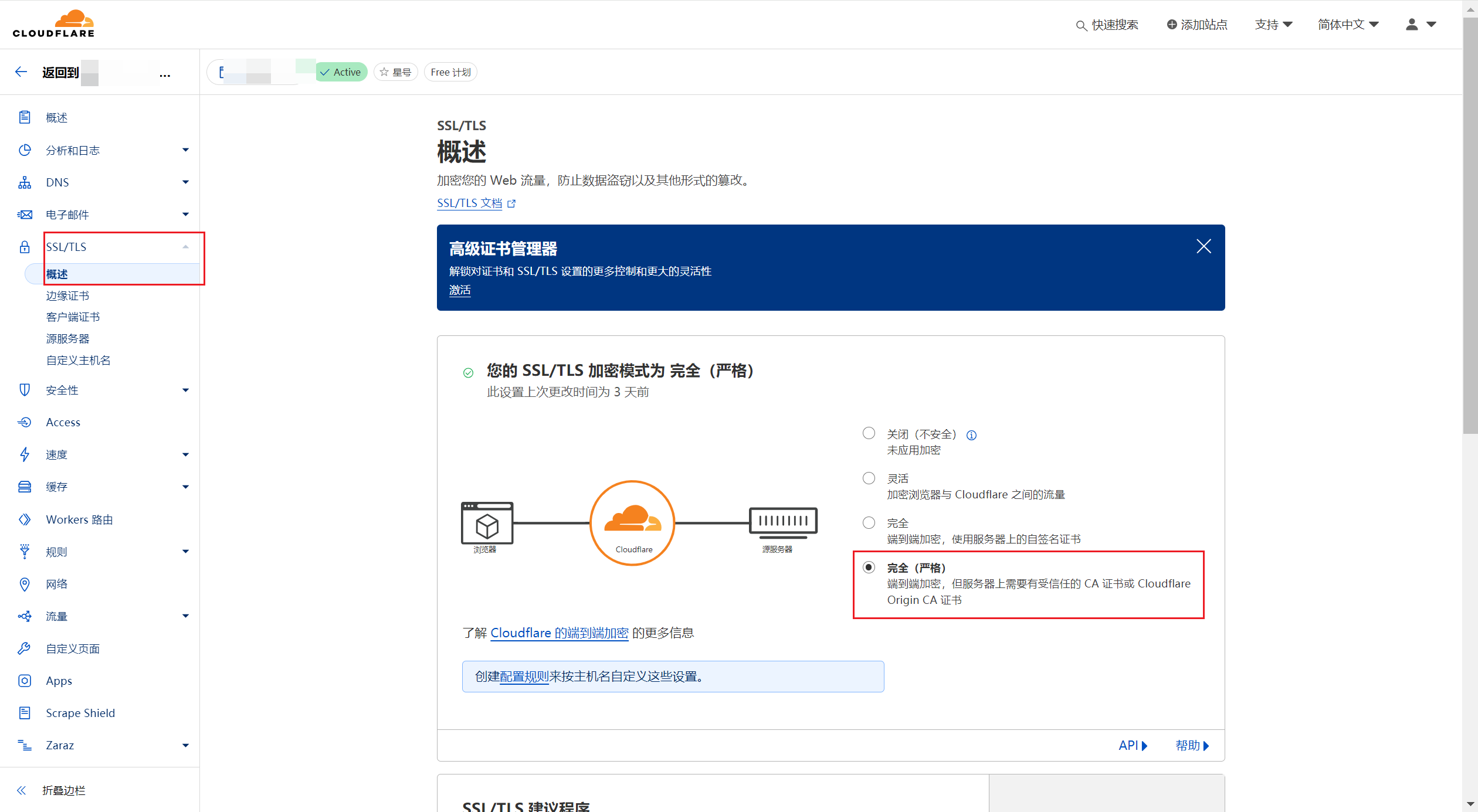
 Finally, set the encryption mode to Full (strict), and that’s it:
 Now you can happily access your website using your domain 😀.